Section one: Ugly is better than NONE
The Zen of Python says: Beautiful is better than ugly.
To me: Ugly is better than NONE.
In this section, I will show you what to do and how to learn for a GUI.
1. What to do?
Creat a GUI, I need to know whatto display, so I draw this:
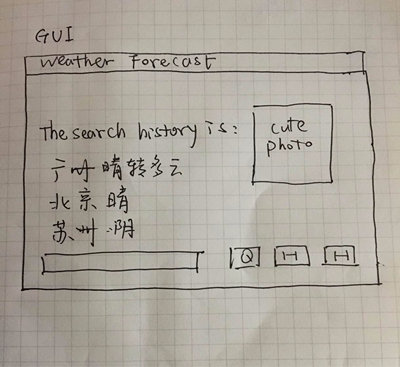
Since I only have 5 days for fighting, I just want to do what I have to do, make my contribution as informative as is required, DO NOT make my contribution more than is requited.(omitted the photo finally)
2.How to do?
Tips: You should read the files of tkinter ,tkinter includes a number of Python modules. Ok,it's sort of frame\button\label.And before that,we have to know everything about Class.
Programs are made up of object definitions and function definitions, and most of the computation is expressed in terms of operations on objects.
Each object definition corresponds to some object or concept in the real world, and the functions that operate on that object correspond to the ways real-world objects interact.(*Think python* ch17)
HELLO, WHY DO I RECOGNIZE EVERY WORD BUT GOT NOTHING IN MY MIND?
I read the code wrote by classmate shippomiru ,that's amazing, it looks so simple and it works!!
Well, I must admit at first I have to read her codes to know what I have to learn(grid/entry/StringVar), and then with the help offered by dear simpleowen , I did let the GUI.py runs in the Editor, although I can't tell the meaning of the code exactly .
3.Ready to go?
According to Leo Tolstoy's *Anna Karenina*:
All happy families resemble one another,each unhappy family is unhappy in its own way.
This week I was still obliged to dig a **big pit for myself**, the only different from CH1 is each time I fell down, I have to stand up again instead of crying because there is no time for me to waste.
The pictures below will show you how I attempt to know what kind of monster I will fight with, and fittting myself up for a battle :
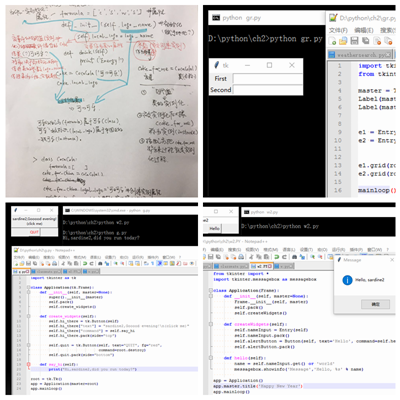
I think the learning path of GUI is :the class - modules - Tkinker.
Everything about CLASS.
The connection between the class definition and the function definitions,it's the Method.
A method is a function that is associated with a particular class.(I know that very late),if the function takes objects as arguments,then that's the motivation for methods.
Methods are defined inside a class definition in order to make the relationship between the class and the method explicit.
The syntax for invoking a method is different from the syntax for calling a function.
3.How to create and display a Gui? What's the simplified interface to the functions and classes in Tkinter?
how to arrange widgets?
how to bind the wiggets to event and StringVar within OOP?
4.Write the code line by line:
Step 1. Import the TKinker modules
First,read the best online resources: [An Introduction to Tkinter](http://effbot.org/tkinterbook/tkinter-index.htm\) by Fredrik Lundh.
It has so many docs to read, so I just skim over the contents ... then I wrote:
'#-*- coding: utf-8 -*- ' # make sure it can display chinese
import tkinter as tk # import tkinter in python
from tkinter import * #use stan operator to import everything from the module
Step 2. Difine the Application class
I think that's the hardest section in CH2 task, cause the CLASS is so strange to me and it'll be called in a strange way, different from the function.
Define variables and functions inside a class definition.
Relate Tkinter and CLASS, use method to make sure that the functions take objects as arguments.
Call the StringVar function, use the set method updates the variable, and notifies all variable observers.
To difine a class just the same we "def" the function while creating the functions. Define variables and functions inside a class definition,explains what the class is for.
Behold:
    class Application(Frame):  #instantiation,Creating a new object\(Frame\), Frame                                         is an instance of the Application class
        def _init_ (self, master=None):   #'initialize' the base class part
            super()._init_(master)
            self.var = StringVar() #call the corresponding constructor to create                                           a Tkinter variable
            self.listHistory = []  # creat the search history
            self.dict_weather = {}
            self.grid()
Step 3. Creat a main
- I need to creat a window with an empty square and the title "Weather Forecast".
- Mainloop runs the event loop, until the user to do something, closing the window, pressing Control-C,ect,and responds accordingly.
I think I can write like this:
    root = tk.Tk() # creat a main window
    app = Application(master=root) # instantiation Application
    app.master.title('Weather Forecast') # set up the title of window
    app.mainloop() #  an infinite loop, entered via the mainloop method
Step 4.The layout
According the require information, At a minimum this GUI should handle plain text(read the weather_info.txt) ,creat a frame, adding some new widgets in it.
(1)
Since everybody says:"Using the grid manager is easy." I tried to use grid method to create table-like layouts:
    self.frame = Frame(self, width=500, height=350)
    self.frame.grid(row=0,column=0,columnspan=4)
(2)
From what I see here - [Label](http://effbot.org/tkinterbook/label.htm\) associates a Tkinter variable(StringVar) with the label:
    self.label = Label(self,textvariable=self.var, anchor=NW, justify=LEFT) # use the anchor option,justfy to the left
    self.label.grid(row=1,sticky='w') # use sticky to specifies the alignment
(3)
Then difine the "Help" "Qui" "History" button, "self" has to be everywhere, althought I don't really know why:
    self.button1 = Button(self, text = 'History',fg="black",command=self.history)
    self.button1.grid(row=1,column=3)
    self.button2 = Button(self, text = 'Help',fg="blue",command=self.help)
    self.button2.grid(row=1,column=2)
    self.button3 = Button(self, text = 'Quit',fg="red",command=self.quit)
    self.button3.grid(row=1,column=1)
Use an Entry to type text(only need a single line,not the "Text" widget). Bind the entry widget to a StringVar instance,and set the entry text via that variable:
self.entry = Entry(self)
self.entry.grid(row=1, sticky='w')
self.entry.blind('<Return>',self.enter)
self.entry.bind('<Return>', self.enter)
Step 5: Try to fetch the current entry text
(1) Import the weather_info.txt
Just copy myself(part of CH1)!! That feel so goooooood!
    file = open('weather_info.txt','r',encoding = 'utf-8')
    for line in file.readlines():
        data = line.split(',')
        self.dict_weather[data[0]] = data[1]
        file.close()
(2) Binding
Bind the StringVar instance with "entry" widget and "text strings" which type from the user, use the get method to fetch the current entry text, call the set method to set the value and update the variable, then use the **delete** to delete all text in the widget.
    def enter(self, event):
        m = self.entry.get()
        if m in self.dict_weather.keys():
            self.var.set('%s weather information:%s' % (m, str(self.dict_weather[m])+'\n'))
            self.listHistory.append(m)
        else:
            self.var.set('Sorry, I do not know what you mean, pleasr try agagin.' +'\n')
        self.entry.delete(0,'end')
        print(m, self.dict_weather[m])
Def the "Help" "Qui" "History" functions, at first I didn't know still have to put "self" in "()",thanks to dear simpleowen.That part is easy if you remember to set "self" everywhere.
    def help(self):   # DO NOT forget the "self"!
        self.var.set('''
        Enter city name to get the weather conditions,
        Enter help,to get more help,
        Enter history,to get the searchHistory,
        Enter quit or exit to quit.
        ''')
    def quit(self):
        exit(0)

    def history(self):

    (ok,I'll omit the rest code)
summary:
So I think it is.
You can see how I reached here and how I struggled in next section.